Audio for VATSIM - Observer Guide

What is Audio for VATSIM?
Audio for VATSIM (AFV) is a modern, high-fidelity voice communication system for the VATSIM. It provides a realistic, low-latency, VoIP-based codec that simulates VHF/HF radio characteristics, including signal degradation based on aircraft altitude, position, and distance from transmitters.
Our resources page, where you can find the Audio for VATSIM download link can be found here
Warning
Audio for VATSIM is not VATSSA's recommended controller audio client. We recommend TrackAudio, a link to the TrackAudio guide can be found here
Setting up Audio for VATSIM
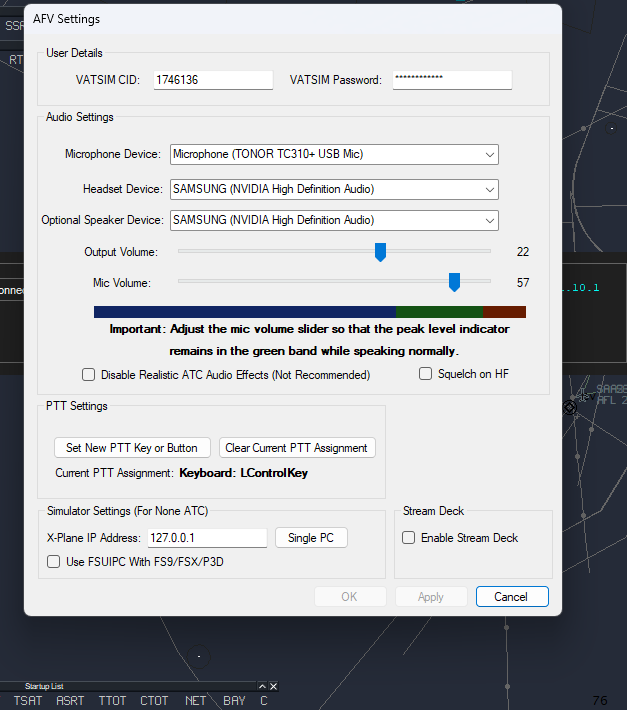
- Input your VATSIM Details
- Your VATSIM CID
- Your VATSIM Password
- Configure audio devices
- Select a Headset, Speaker and Input device
- Set a Push-To-Talk (PTT) bind
- Save your changes by pressing 'Apply all' on the bottom right
Connecting and Listening to ATC
- Open Audio for VATSIM, if setup correctly and connected to VATSIM you will be able to connect by pressing the 'Connect' button.
- Once connected, press the
+button to Add a Station. -
Type in the station you want to observe, in this case we have
FACT_GND. -
Click 'RX' (receive) to listen on the frequency.

Still having issues with TrackAudio? Feel free to ask for help in one of our channels in the VATSSA Discord server which can be found in the VATSIM Community Server's